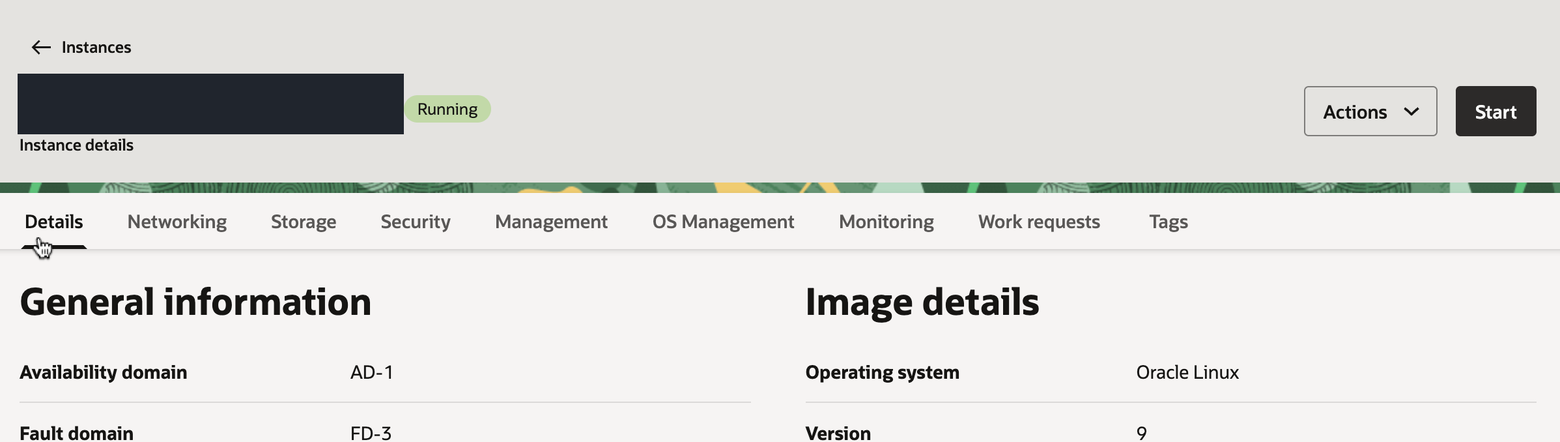
This is the first half of a Compute migration from Commercial Frankfurt (eu-frankfurt-1, Tenancy 1) to EU Sovereign Frankfurt (eu-frankfurt-2, Tenancy 2). The source VM becomes an OCI custom image, which we export to a private Object Storage bucket in Commercial Frankfurt. In Part 2, the sovereign tenancy imports that object using a pre-authenticated request URL.
The custom image captures the VM boot disk. Record the source instance shape, CPU architecture, operating system and networking separately. You will select the destination shape, subnet and access settings when you launch the new instance in Part 2.
1. Create the custom image in Tenancy 1
In the commercial tenancy, select Germany Central (Frankfurt). Go to Compute > Instances, open the source VM and choose Create custom image from its actions. Select the compartment, enter a recognisable image name and submit.
Schedule the capture in a change window. The Console warns that the instance is taken offline during imaging. Give the application time to shut down cleanly and follow Oracle's OS-specific preparation before taking the image.
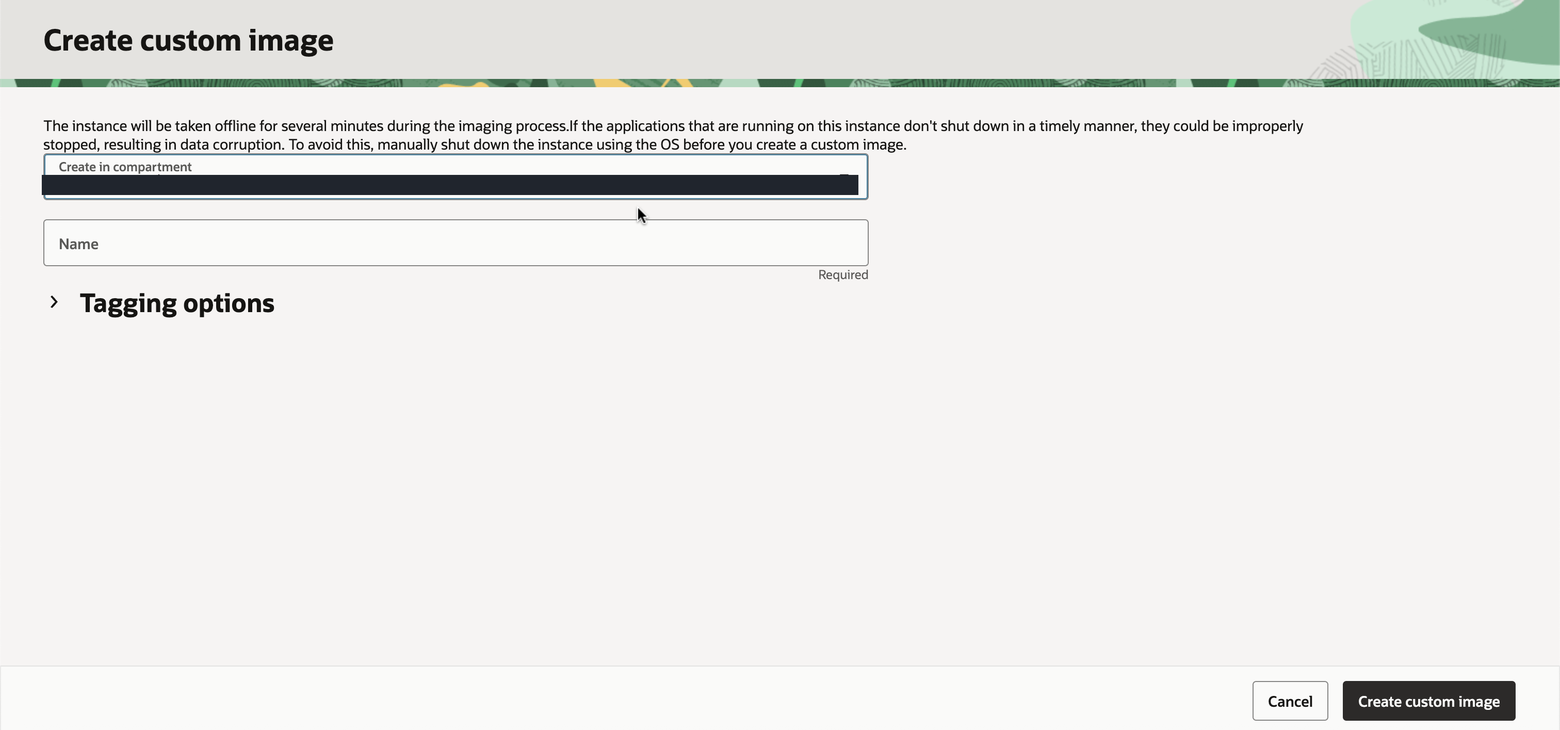
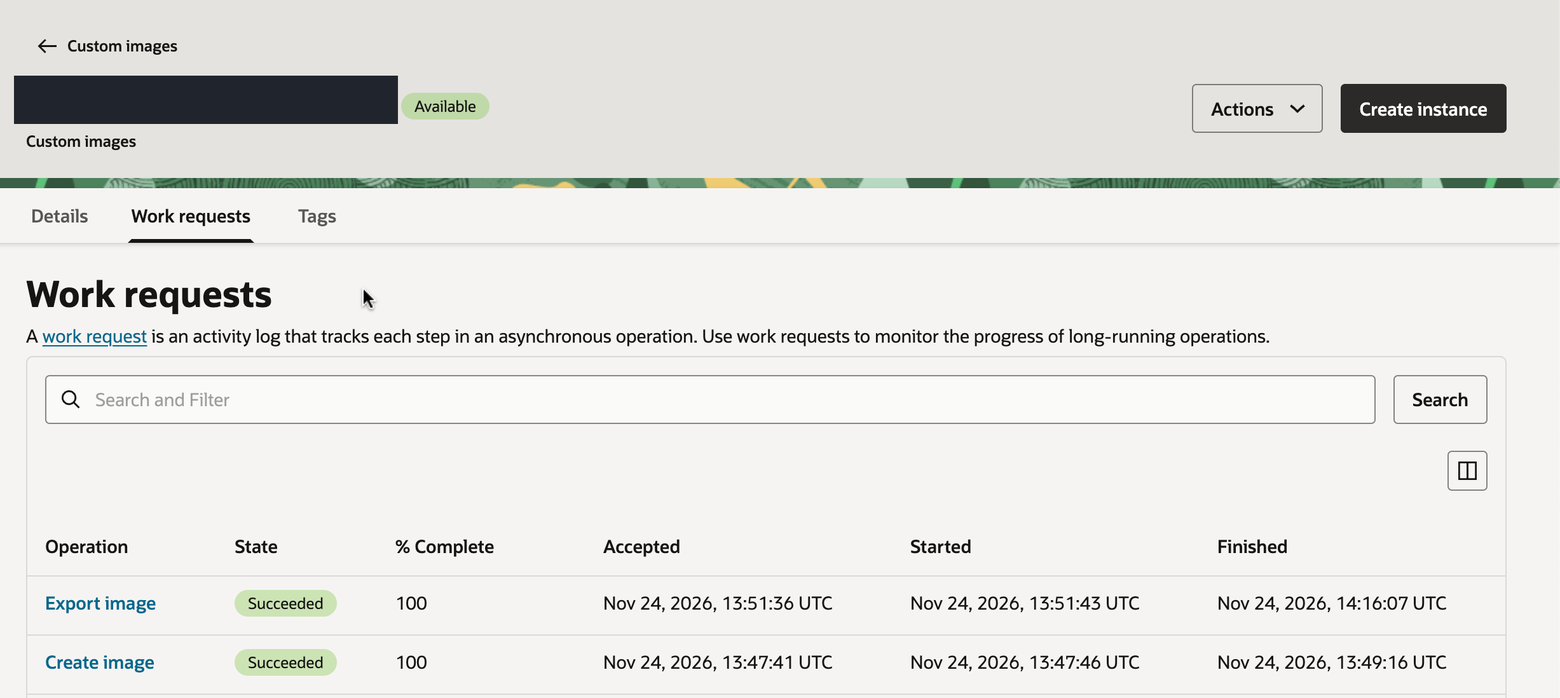
Open Compute > Custom images in the image compartment and wait for the image to show Available. If creation stalls or fails, check Work requests on the image details page for the operation status and errors.
2. Create a private export bucket
In the same region, open Object Storage & Archive Storage > Buckets. Select the destination compartment and create a bucket for the migration, or use an existing private bucket you can write to. The capture uses a Standard-tier bucket named Migration_Export.
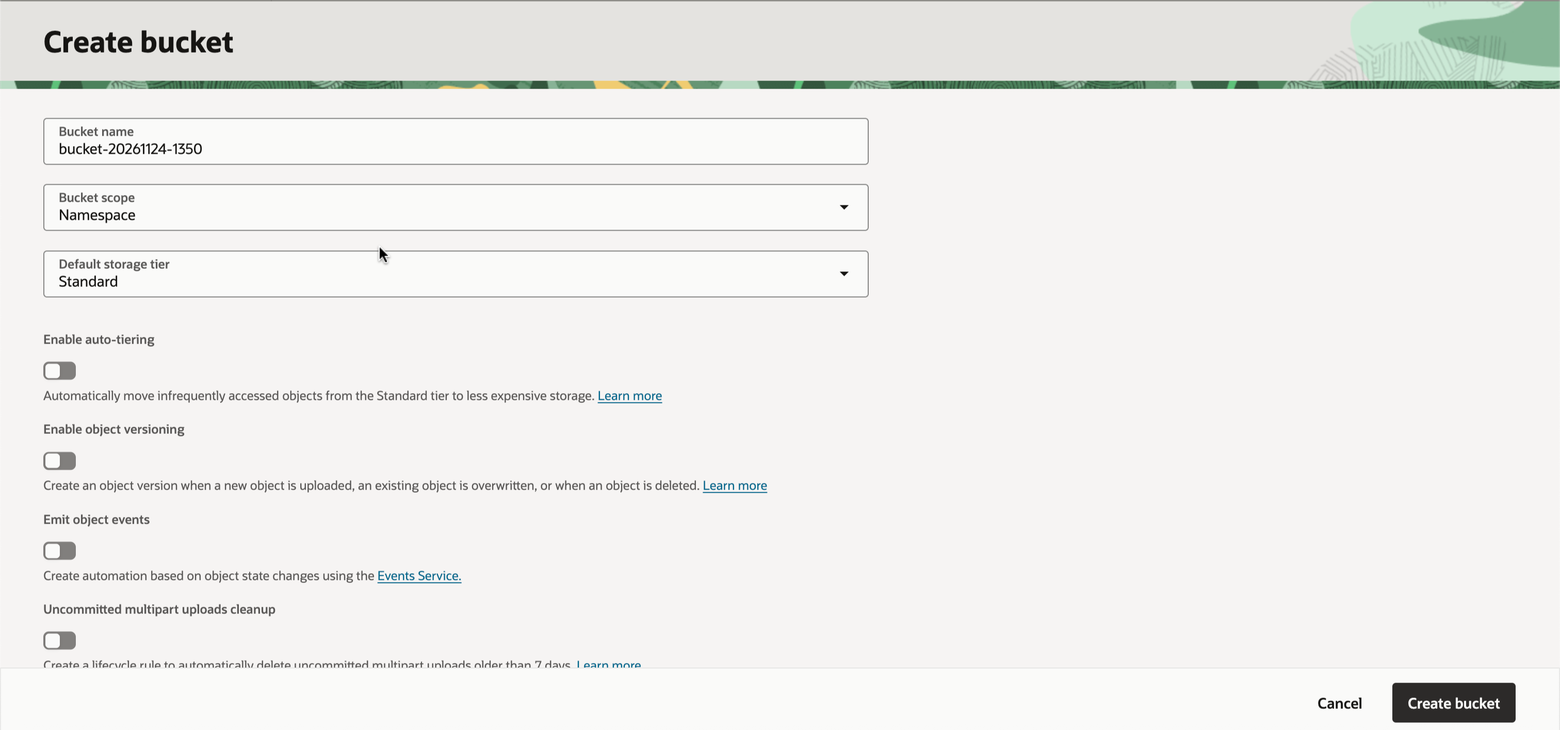
3. Export the image in OCI format
Open the available custom image and choose Actions > Export. Select Export to an Object Storage bucket, choose the bucket compartment and bucket, and enter an object name. For the image format, select Oracle Cloud Infrastructure file with QCOW2 image and OCI metadata (.oci). Submit the export.
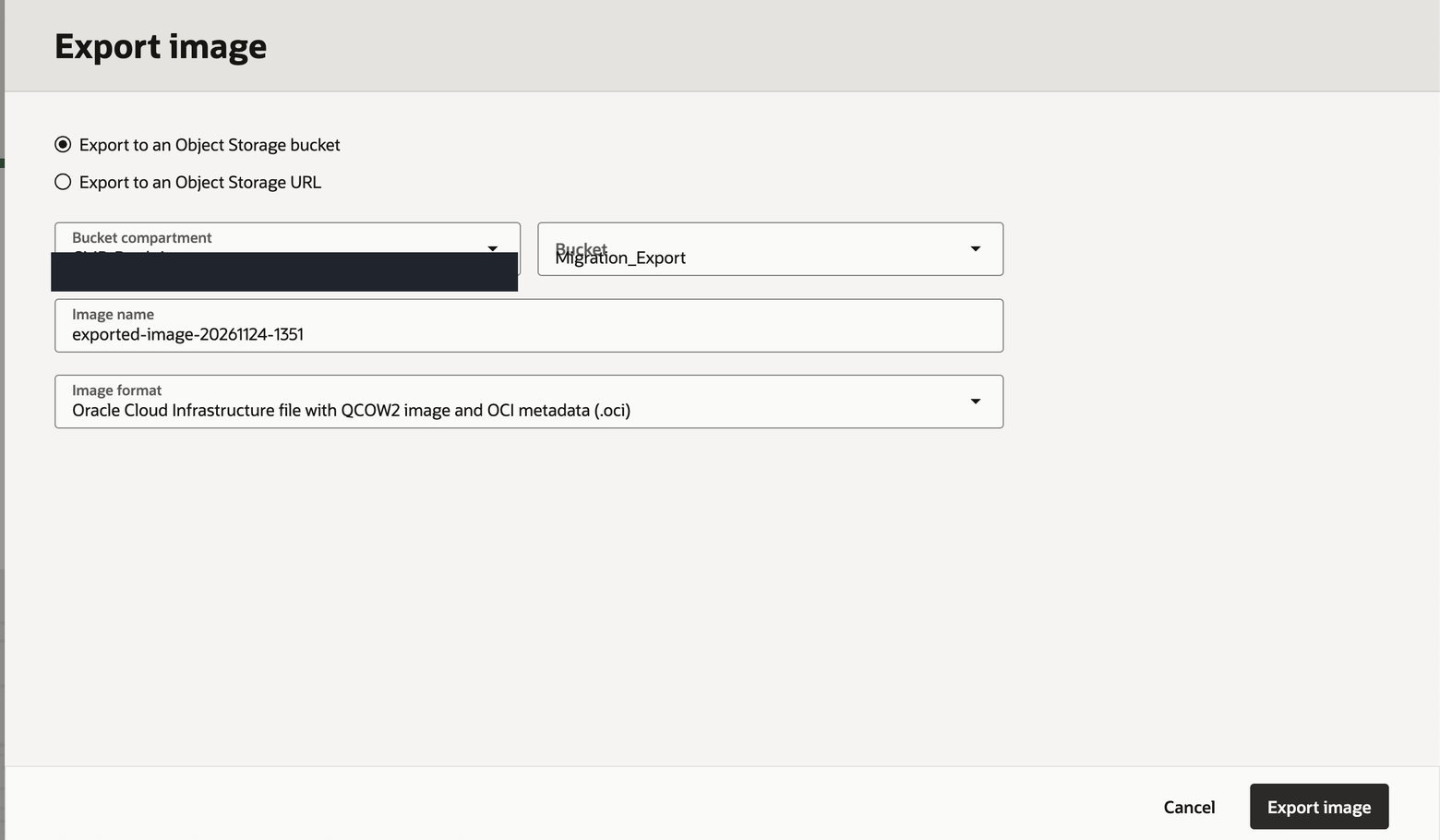
4. Verify the export
On the custom image Work requests tab, check that Export image shows Succeeded and 100%. Then open the bucket Objects tab and verify that the expected object exists. The exported image in this walkthrough was approximately 14 GB.
Handover to Tenancy 2
The source-side result is an OCI-format image object in a private Commercial Frankfurt bucket. Record the source region, bucket and exact object name. Keep the object available until the sovereign import has completed. Part 2 starts by granting temporary read access to that single object.
Part 2 - Importing an OCI VM into EU Sovereign Cloud